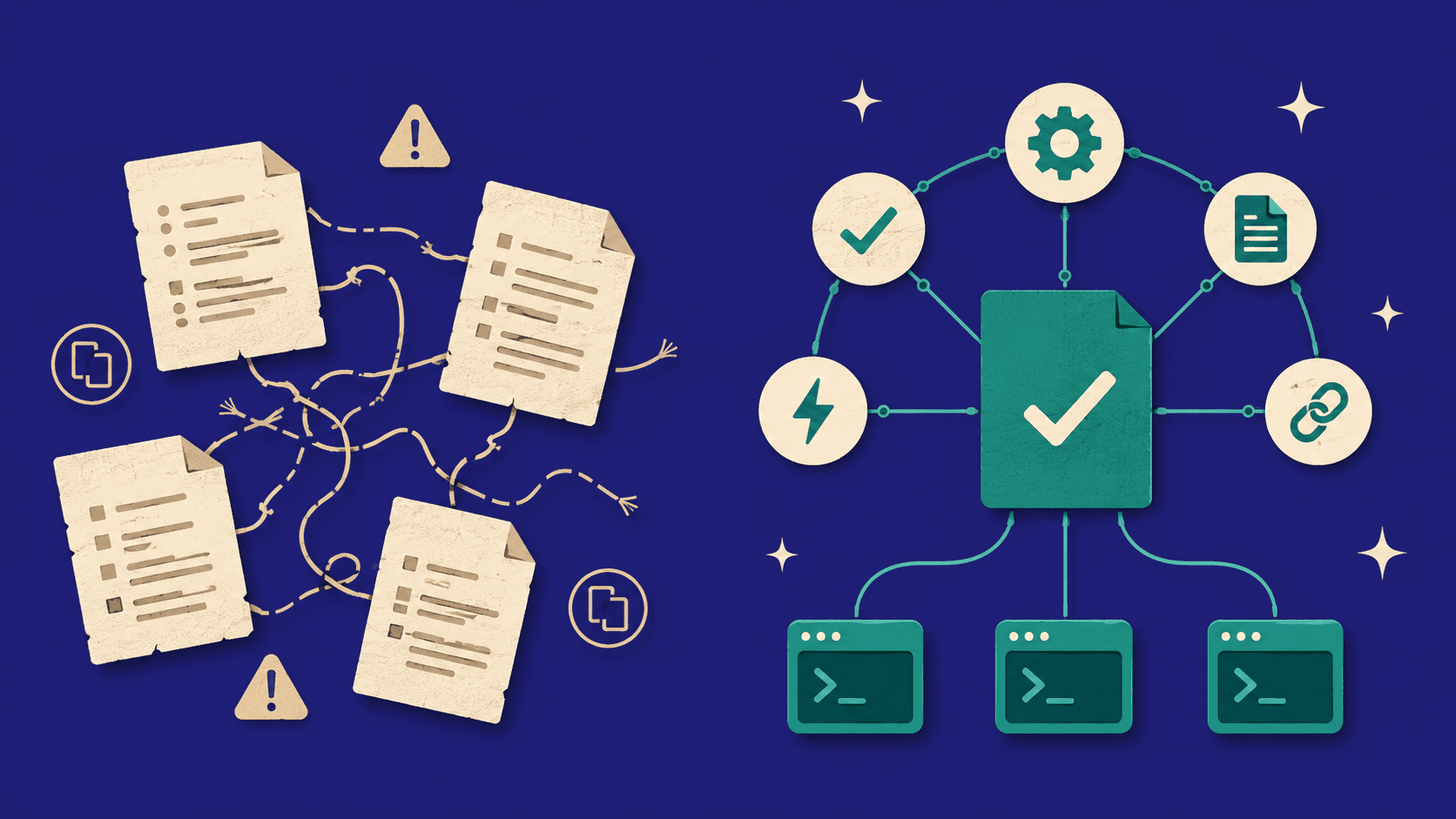
With my blog now live, I’ve decided to start exploring what else could be done using AI. After all, the available models have already proven to be able to support me in creating this blog and update it with any new features I thought would be a nice addition.
For my next venture, I wanted to explore building something from scratch, completely with Claude Code. This time, I wouldn’t set everything manually and do any copy/paste from any models.
However, to do so, I wanted to make Claude Code more powerful… Be less reliant on me. This is where the Claude Code “YOLO” mode came in.
Tools used
- Development environment
- VS Code
- Dev Containers extension
- Docker
- AI
- Claude Code (Pro+)
- Playwright MCP
Claude Code in YOLO mode
When I first read about this “YOLO” mode online, I quickly thought this could be a game changer. Basically, launching Claude Code with this command enables it to run any commands without asking permission, turning it into a development powerhouse.
However, running Claude in this manner is rather risky. After all, sometimes the models do very strange things… I did not want to end up in a situation where it would start affecting my other projects or mess up my machine.
So I started looking for a solution to limit the scope of damage it could do. This is where the development containers come into play. Additionally, I wanted a way for Claude Code to be able to properly test what I would ask it to develop on its own. That’s when I stumbled upon Playwright MCP.
Empowering Claude Code with Playwright MCP
Claude Code MCPs (Model Control Protocols) allow integration with external tools. Playwright MCP has been nothing short of amazing in my initiatives. This simple tool allows Claude Code to have access to different browsers, run tests, take screenshots, take videos and even provide detailed reports on its findings.
The reports provides a detailed list of tests with links to videos when failed, all automated:
As you can imagine, if we’re setting up a way for Claude Code to be able to move forward on its own and be able to test as it develops… The potential to turn ideas into actual products is much higher!
Setting up the environment
Before we start setting up the environment, I must clearly warn that although we will be working inside a container, there can be some edge cases where Claude Code might still access real system files if misconfigured.
The first step in setting up my new project environment was to set up a Docker Container. Luckily, Anthropic already created documentation around this. However, after experimenting a bit with these containers and how I wanted to be able to work directly from Visual Studio Code and build the container directly from there, I ran into quite a few issues.
As such, I will document how I was able to actually get the container working considering the VS Code requirement.
The first step is to clone the Anthropic claude-code repository from GitHub as it contains the .devcontainer files, which are needed for this solution. Simply open your terminal, then go to your Projects folder (or any other folder where you want to create the Docker Container project) and run this command (make sure to replace <project name> with the name of your project):
git clone https://github.com/anthropics/claude-code.git <project name>git clone https://github.com/anthropics/claude-code.git <project name>This will start downloading files and create a subfolder with the files needed to build the container. Unfortunately, this command clones all the files from the claude-code repository… For this specific adventure, we only want the files in .devcontainer folder.
As such, we can run the following command to remove all the other files. But first, make sure to move to your newly created folder. The following commands will delete everything except .devcontainer
# Move .devcontainer to your home directory (or anywhere you deem better)
mv .devcontainer ~/

# Remove everything else in the project folder
rm -rf ./* .[^.]*

# Move .devcontainer back
mv ~/.devcontainer .
# Move .devcontainer to your home directory (or anywhere you deem better)
mv .devcontainer ~/
# Remove everything else in the project folder
rm -rf ./* .[^.]*
# Move .devcontainer back
mv ~/.devcontainer .Now, the next step is to disable the init-firewall.sh call from devcontainer.json and set the context properly. After quite a few headaches trying to figure out why I couldn’t download some requirements due to the restrictiveness of the file, I opted for simply disabling the init-firewall.sh for development. Additionally, the context must be set to “.” to give Docker access to the entire project directory structure during the build process. In short, it tells Docker to use the project root (parent of .devcontainer) as the starting point for all file operations during the build.
This is my devcontainer.json:
{
"name": "Claude Code Sandbox",
"build": {
  "dockerfile": "Dockerfile",
  "context": ".",
  "args": {
    "TZ": "${localEnv:TZ:America/Los_Angeles}"
  }
},
"runArgs": ["--cap-add=NET_ADMIN", "--cap-add=NET_RAW"],
"customizations": {
  "vscode": {
    "extensions": [
      "dbaeumer.vscode-eslint",
      "esbenp.prettier-vscode",
      "eamodio.gitlens"
    ],
    "settings": {
      "editor.formatOnSave": true,
      "editor.defaultFormatter": "esbenp.prettier-vscode",
      "editor.codeActionsOnSave": {
        "source.fixAll.eslint": "explicit"
      },
      "terminal.integrated.defaultProfile.linux": "zsh",
      "terminal.integrated.profiles.linux": {
        "bash": {
          "path": "bash",
          "icon": "terminal-bash"
        },
        "zsh": {
          "path": "zsh"
        }
      }
    }
  }
},
"remoteUser": "node",
"mounts": [
  "source=claude-code-bashhistory-${devcontainerId},target=/commandhistory,type=volume",
  "source=claude-code-config-${devcontainerId},target=/home/node/.claude,type=volume"
],
"remoteEnv": {
  "NODE_OPTIONS": "--max-old-space-size=4096",
  "CLAUDE_CONFIG_DIR": "/home/node/.claude",
  "POWERLEVEL9K_DISABLE_GITSTATUS": "true"
},
"workspaceMount": "source=${localWorkspaceFolder},target=/workspace,type=bind,consistency=delegated",
"workspaceFolder": "/workspace"
//"postCreateCommand": "sudo /usr/local/bin/init-firewall.sh"
}
{
"name": "Claude Code Sandbox",
"build": {
"dockerfile": "Dockerfile",
"context": ".",
"args": {
"TZ": "${localEnv:TZ:America/Los_Angeles}"
}
},
"runArgs": ["--cap-add=NET_ADMIN", "--cap-add=NET_RAW"],
"customizations": {
"vscode": {
"extensions": [
"dbaeumer.vscode-eslint",
"esbenp.prettier-vscode",
"eamodio.gitlens"
],
"settings": {
"editor.formatOnSave": true,
"editor.defaultFormatter": "esbenp.prettier-vscode",
"editor.codeActionsOnSave": {
"source.fixAll.eslint": "explicit"
},
"terminal.integrated.defaultProfile.linux": "zsh",
"terminal.integrated.profiles.linux": {
"bash": {
"path": "bash",
"icon": "terminal-bash"
},
"zsh": {
"path": "zsh"
}
}
}
}
},
"remoteUser": "node",
"mounts": [
"source=claude-code-bashhistory-${devcontainerId},target=/commandhistory,type=volume",
"source=claude-code-config-${devcontainerId},target=/home/node/.claude,type=volume"
],
"remoteEnv": {
"NODE_OPTIONS": "--max-old-space-size=4096",
"CLAUDE_CONFIG_DIR": "/home/node/.claude",
"POWERLEVEL9K_DISABLE_GITSTATUS": "true"
},
"workspaceMount": "source=${localWorkspaceFolder},target=/workspace,type=bind,consistency=delegated",
"workspaceFolder": "/workspace"
//"postCreateCommand": "sudo /usr/local/bin/init-firewall.sh"
}After this, we can set up the Dockerfile properly. Here, there’s quite a few modifications from the base Anthropic file because we want to set up Playwright dependencies and browsers.
The code for my Dockerfile is as such:
FROM node:20

ARG TZ
ENV TZ="$TZ"

# Install basic development tools and iptables/ipset
RUN apt update && apt install -y less \
git \
procps \
sudo \
fzf \
zsh \
man-db \
unzip \
gnupg2 \
gh \
iptables \
ipset \
iproute2 \
dnsutils \
aggregate \
jq

# Install dependencies needed for Playwright browsers
RUN apt-get update && apt-get install -y \
libnss3 \
libatk-bridge2.0-0 \
libxss1 \
libasound2 \
libxcomposite1 \
libxdamage1 \
libxrandr2 \
libgbm1 \
libgtk-3-0 \
wget \
curl \
gnupg2 \
fonts-liberation \
--no-install-recommends && \
rm -rf /var/lib/apt/lists/*

# Ensure default node user has access to /usr/local/share
RUN mkdir -p /usr/local/share/npm-global && \
chown -R node:node /usr/local/share

ARG USERNAME=node

# Persist bash history.
RUN SNIPPET="export PROMPT_COMMAND='history -a' && export HISTFILE=/commandhistory/.bash_history" \
&& mkdir /commandhistory \
&& touch /commandhistory/.bash_history \
&& chown -R $USERNAME /commandhistory

# Set `DEVCONTAINER` environment variable to help with orientation
ENV DEVCONTAINER=true

# Create workspace and config directories and set permissions
RUN mkdir -p /workspace /home/node/.claude && \
chown -R node:node /workspace /home/node/.claude


WORKDIR /workspace

RUN ARCH=$(dpkg --print-architecture) && \
wget "https://github.com/dandavison/delta/releases/download/0.18.2/git-delta_0.18.2_${ARCH}.deb" && \
sudo dpkg -i "git-delta_0.18.2_${ARCH}.deb" && \
rm "git-delta_0.18.2_${ARCH}.deb"

# Set up non-root user
USER node

# Install global packages
ENV NPM_CONFIG_PREFIX=/usr/local/share/npm-global
ENV PATH=$PATH:/usr/local/share/npm-global/bin

# Set the default shell to zsh rather than sh
ENV SHELL=/bin/zsh

# Default powerline10k theme
RUN sh -c "$(wget -O- https://github.com/deluan/zsh-in-docker/releases/download/v1.2.0/zsh-in-docker.sh)" -- \
-p git \
-p fzf \
-a "source /usr/share/doc/fzf/examples/key-bindings.zsh" \
-a "source /usr/share/doc/fzf/examples/completion.zsh" \
-a "export PROMPT_COMMAND='history -a' && export HISTFILE=/commandhistory/.bash_history" \
-x

# Install Claude
RUN npm install -g @anthropic-ai/claude-code

# Copy and set up firewall script
COPY init-firewall.sh /usr/local/bin/
USER root
RUN chmod +x /usr/local/bin/init-firewall.sh && \
echo "node ALL=(root) NOPASSWD: /usr/local/bin/init-firewall.sh" > /etc/sudoers.d/node-firewall && \
chmod 0440 /etc/sudoers.d/node-firewall

# Install playwright and playwright-mcp as root
RUN npm install -g playwright @playwright/mcp

# Install Playwright browsers with all dependencies as root
RUN npx playwright install chrome chromium firefox webkit

# Create playwright cache directory for node user and copy browsers
RUN mkdir -p /home/node/.cache/ms-playwright && \
  cp -r /root/.cache/ms-playwright/* /home/node/.cache/ms-playwright/ 2>/dev/null || true && \
  chown -R node:node /home/node/.cache

# Switch to node user
USER node
FROM node:20
ARG TZ
ENV TZ="$TZ"
# Install basic development tools and iptables/ipset
RUN apt update && apt install -y less \
git \
procps \
sudo \
fzf \
zsh \
man-db \
unzip \
gnupg2 \
gh \
iptables \
ipset \
iproute2 \
dnsutils \
aggregate \
jq
# Install dependencies needed for Playwright browsers
RUN apt-get update && apt-get install -y \
libnss3 \
libatk-bridge2.0-0 \
libxss1 \
libasound2 \
libxcomposite1 \
libxdamage1 \
libxrandr2 \
libgbm1 \
libgtk-3-0 \
wget \
curl \
gnupg2 \
fonts-liberation \
--no-install-recommends && \
rm -rf /var/lib/apt/lists/*
# Ensure default node user has access to /usr/local/share
RUN mkdir -p /usr/local/share/npm-global && \
chown -R node:node /usr/local/share
ARG USERNAME=node
# Persist bash history.
RUN SNIPPET="export PROMPT_COMMAND='history -a' && export HISTFILE=/commandhistory/.bash_history" \
&& mkdir /commandhistory \
&& touch /commandhistory/.bash_history \
&& chown -R $USERNAME /commandhistory
# Set `DEVCONTAINER` environment variable to help with orientation
ENV DEVCONTAINER=true
# Create workspace and config directories and set permissions
RUN mkdir -p /workspace /home/node/.claude && \
chown -R node:node /workspace /home/node/.claude
WORKDIR /workspace
RUN ARCH=$(dpkg --print-architecture) && \
wget "https://github.com/dandavison/delta/releases/download/0.18.2/git-delta_0.18.2_${ARCH}.deb" && \
sudo dpkg -i "git-delta_0.18.2_${ARCH}.deb" && \
rm "git-delta_0.18.2_${ARCH}.deb"
# Set up non-root user
USER node
# Install global packages
ENV NPM_CONFIG_PREFIX=/usr/local/share/npm-global
ENV PATH=$PATH:/usr/local/share/npm-global/bin
# Set the default shell to zsh rather than sh
ENV SHELL=/bin/zsh
# Default powerline10k theme
RUN sh -c "$(wget -O- https://github.com/deluan/zsh-in-docker/releases/download/v1.2.0/zsh-in-docker.sh)" -- \
-p git \
-p fzf \
-a "source /usr/share/doc/fzf/examples/key-bindings.zsh" \
-a "source /usr/share/doc/fzf/examples/completion.zsh" \
-a "export PROMPT_COMMAND='history -a' && export HISTFILE=/commandhistory/.bash_history" \
-x
# Install Claude
RUN npm install -g @anthropic-ai/claude-code
# Copy and set up firewall script
COPY init-firewall.sh /usr/local/bin/
USER root
RUN chmod +x /usr/local/bin/init-firewall.sh && \
echo "node ALL=(root) NOPASSWD: /usr/local/bin/init-firewall.sh" > /etc/sudoers.d/node-firewall && \
chmod 0440 /etc/sudoers.d/node-firewall
# Install playwright and playwright-mcp as root
RUN npm install -g playwright @playwright/mcp
# Install Playwright browsers with all dependencies as root
RUN npx playwright install chrome chromium firefox webkit
# Create playwright cache directory for node user and copy browsers
RUN mkdir -p /home/node/.cache/ms-playwright && \
cp -r /root/.cache/ms-playwright/* /home/node/.cache/ms-playwright/ 2>/dev/null || true && \
chown -R node:node /home/node/.cache
# Switch to node user
USER nodeFinally, we can create the .mcp.json file at the root of the project with the following code to enable Playwright within Claude:
{
"mcpServers": {
  "playwright": {
    "command": "npx",
    "args": ["@playwright/mcp"]
  }
}
}
{
"mcpServers": {
  "playwright": {
    "command": "npx",
    "args": ["@playwright/mcp"]
  }
}
}
Building the container to run Claude
Once all the files have been properly configured, we can run the following command in the terminal from the root directory of your project:
code .code .This will launch VS Code in the current folder and should ask you if you want to open the folder in a container. Simply click on “Reopen in a Container” and it should build the Docker container:
Once the container is built, it should appear in the Docker app dashboard (accessible through the Docker app icon in the OS dashboard). From here, I recommend starting a new terminal in VS Code (Terminal > New Terminal) and running the following command to ensure the container can access internet… It should return HTML content:
curl -4 https://example.comcurl -4 https://example.comLaunching Claude Code in YOLO mode
Finally, after the Container has been set up and the curl command worked, we can start working with Claude!
Before moving forward with Claude Code in “YOLO” mode, we need to run a normal instance of Claude. After a lot of testing, I’ve learned that running Claude in this mode bypasses all approval requests, including the ones needed to enable the MCPs! So simply run this in a Container terminal:
claudeclaudeWhen running the claude command, it will ask you to Authorize Claude Code for your container, just like normal. Simply open the link as offered by VS Code and you will find this landing page:
Simply click Authorize and continue going through the prompt. At the end, you will get a prompt asking if you want to enable the MCP servers. Choose “Yes, proceed with MCP servers enabled”:
After this, we can close the regular Claude instance and launch the “YOLO” instance from a terminal in the Container:
claude --dangerously-skip-permissionsclaude --dangerously-skip-permissionsWhen running this for the first time, there will be a warning message like this:
As the message indicates, we should only run this mode within a container, which we are! Choose “Yes, I accept”.
Then, once in the Claude instance, make sure the Playwright MCP works properly. For this I simply tell Claude:
Use whatever Playwright MCP tools you have available to open a browser, navigate to https://example.com and take a screenshotUse whatever Playwright MCP tools you have available to open a browser, navigate to https://example.com and take a screenshotMCP Tools availability
By running inside a Docker Container, Claude will only have access to the container files. As such, it will be very unlikely to break apart other projects or the machine. Together with Playwright, we can now ask it to build something and test it. Since it won’t have to ask for our permission for every command, it can truly develop a prototype rapidly.
Closing Thoughts
Claude Code in YOLO mode is a game changer for rapid prototyping. Combined with Playwright MCP, it builds and tests features autonomously… just from a prompt! It basically runs by itself for a while and comes back with some new, fully built features. This is quite different from the regular way where we have to constantly review everything.
For established projects, the added caution of standard mode is still valuable, but for early-stage ideas, this is the future.