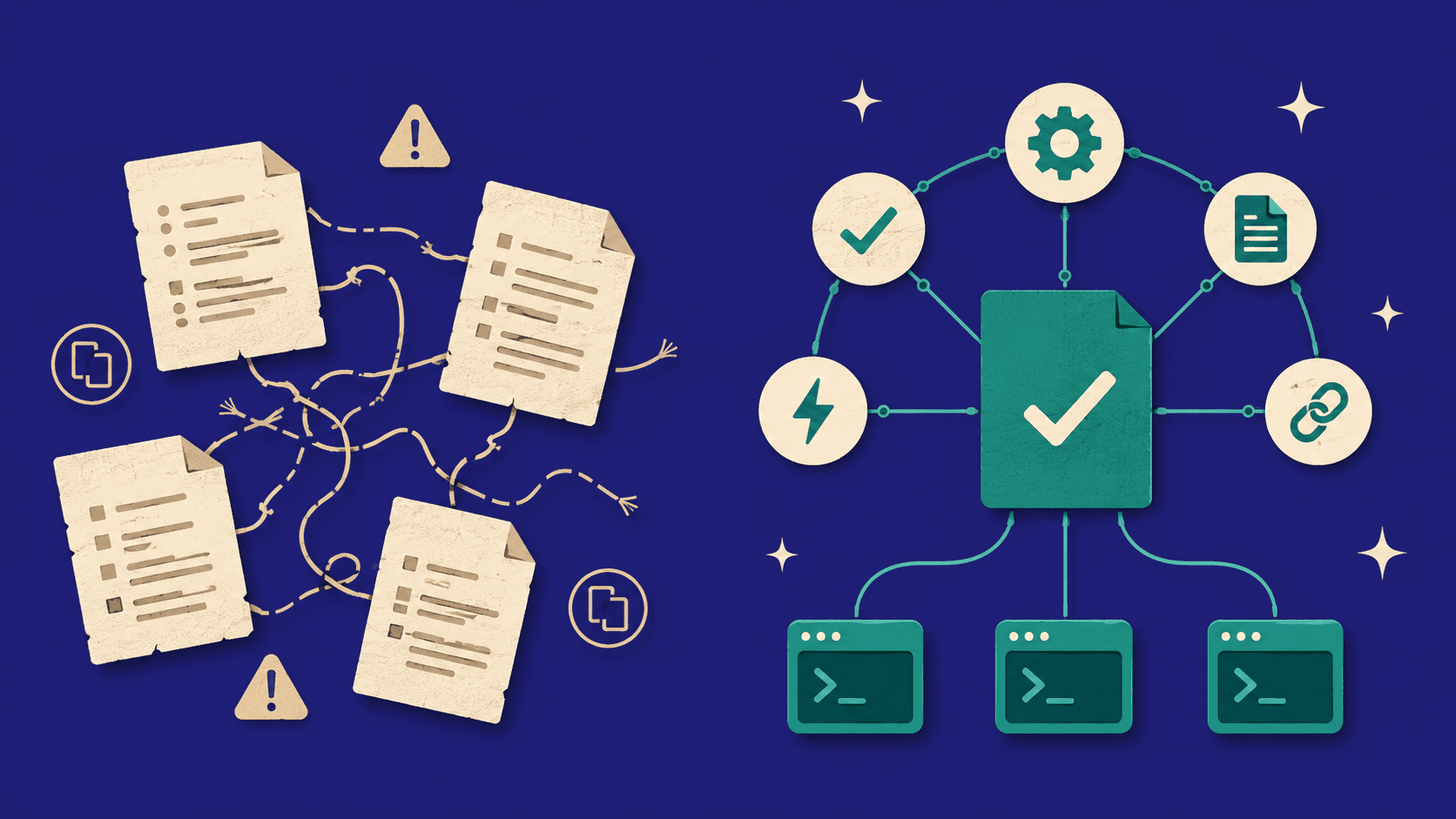
After I had finally launched the first version of my blog, there was still plenty to do… After all, the site was quite simple at this stage and barely supported any customization. As such, I was consistently working with the AI chatbots to try to get them to understand my project, remember my structure and my tech stack while also developing new features.
Tools used
- Tools compared
- Gemini CLI
- Claude Code (Pro)
Moving towards terminal agents
As I was working on my new website, I remember that adding a single collection to the site, getting it to work in the administration panel & rendering properly could easily take from a day to a few days depending on how many criteria there were… Oftentimes, the chatbot would start working on a solution then go off-the-rail midway and I’d have to start from scratch.
Collections
This brought me to seek alternatives to my current development flow. Luckily, this was right around the time when Google announced they were releasing Gemini CLI for free.
Starting with Gemini CLI
After hearing this news, I quickly looked up online how to get started with this new tool. As with everything else, the best way I found was to simply ask my current AI chatbot (Gemini back then) how to get started with the thing.
At first I asked if it knew about it, which it confirmed right away… Obviously. Then I proceeded to ask how I can get started with the following prompt:
Explain to me very clearly and precisely, while making sure to include which folder to run any command, how to get started with Gemini CLIExplain to me very clearly and precisely, while making sure to include which folder to run any command, how to get started with Gemini CLIFirst, getting started was incredibly easy. I basically had to run this very simple command from any directory:
npm install -g @google/gemini-clinpm install -g @google/gemini-cliSoon enough, it would ask me which theme I wanted, for which I picked Default. Subsequently, I had to login to my Google account.
And voila! I could now run Gemini anywhere on my computer.
For the next step, I had to move to my project directory to initiate the tool for my project. Very simply, in my case my project was in my Projects/pixelsinsuits folder from my user home directory:
cd ~/Projects/pixelsinsuitscd ~/Projects/pixelsinsuitsOnce in my folder, this simple command line would initiate the CLI for Gemini:
geminigeminiAs soon as the tool opened, I had a good idea of what would be possible… I was basically now able to invoke the Gemini LLM directly from my project directory. My first thought was to ask it if it understood what my project was about. Right away, it explained to me my own project with precision. Amazing.
I then asked it to build a markdown file explaining what my project was about, my tech stack, the project structure I was using and so on. I figured this would serve as a knowledge baseline for my future prompts, instead of always asking it to analyze my entire codebase over and over.
Moving away from Web-based chatbots to Terminal tools was by far the best decision I had done throughout my project since the start. Development was much faster and I could push the boundaries with much more ease.
However, as I was developing my site, adding new features etc. I felt after a while that it would sometimes miss the mark entirely and get off the rails. Also, it was struggling with everything related to configuration pretty harshly. For example, I remember having a very hard time with updating my PM2 configuration file correctly, where it ended up simply forcing the values in the pm2 call.
I started looking for alternatives which could help me move faster with less “bumps”.
Moving to Claude Code
As I was consuming reviews online and watching videos about AI solutions, I ended up deciding to subscribe to Claude Pro to try Claude Code, since they had now made it available to Claude Pro users. After all, I was now already hooked on the whole Terminal-based tools approach.
And so once again, I had to install the tool to start using it. To be honest, both tools follow pretty much the same setup process… First, we install the tool globally running this command from any directory:
npm install -g @anthropic-ai/claude-codenpm install -g @anthropic-ai/claude-codeThen, we go to the project directory
cd ~/Projects/pixelsinsuitscd ~/Projects/pixelsinsuitsThen, we launch Claude
claudeclaudeAnd finally, we authenticate ourselves.
I must say, Gemini CLI already felt quite powerful… But Claude Code was a different beast. Some major issues which I had faced with Gemini CLI were fixed in a matter of minutes using Claude Code.
One such issue was to add the actual icons next to my Category selection for my articles in the admin panel. Something like this…
I had spent an entire day trying to get this built with Gemini without any good result… And yet, Claude was able to get it done within 30 minutes.
To me, Claude was like an enhanced version of Gemini CLI… However, it came with a price tag. Since then, I’ve been using Claude Code pretty much non-stop and haven’t looked back.
One thing I do notice though is that Claude has a shorter context window… After some time it warns of “X% before auto-compact”. My recommendation would be to update the markdown files used to reflect the work done when we reach around 20-30% and then start a new terminal.
I don’t consider this to be a big drawback to be honest though since with Gemini, at some point I felt like the context window would not really be helping me to get out of these death spirals and might even be contributing to it.
Closing thoughts
Once again, I firmly believe that moving from Web-based chatbots to Terminal agents has been the most impactful decision I’ve made for my project (and future projects). Being able to invoke the models in the context of our projects has been a game changer in all aspects.
While I have now fully adopted Claude Code (at least for now, the AI scene is moving so fast nowadays…), I would still recommend people to start with Gemini CLI and see if they like it. I also believe Gemini CLI might very well be enough for many projects. However, if after trying it you believe you might need “something more”, I would definitely recommend Claude Code. The monthly fee is fairly low compared to the time I’ve been saving so far.